
User guide
How to use Weight Tracker
Everything in the app, explained in plain words. Start at the top, or jump to what you need.
Getting started
- Create your free account on the sign-up page. It only needs a name, an email and a password.
- Download the app for Mac or Windows from the download page and install it.
- Open it and sign in with the same email and password.
- Agree to the privacy terms, then enter your height, age, sex (for your body figure), today’s weight and your waist.
- Choose a badge: up to two letters, or a photo, so partners can spot your line.
Measuring your waist: stand up, breathe out normally, and measure around your middle halfway between your lowest rib and the top of your hip bone. Use the same spot every time.
The panel at a glance
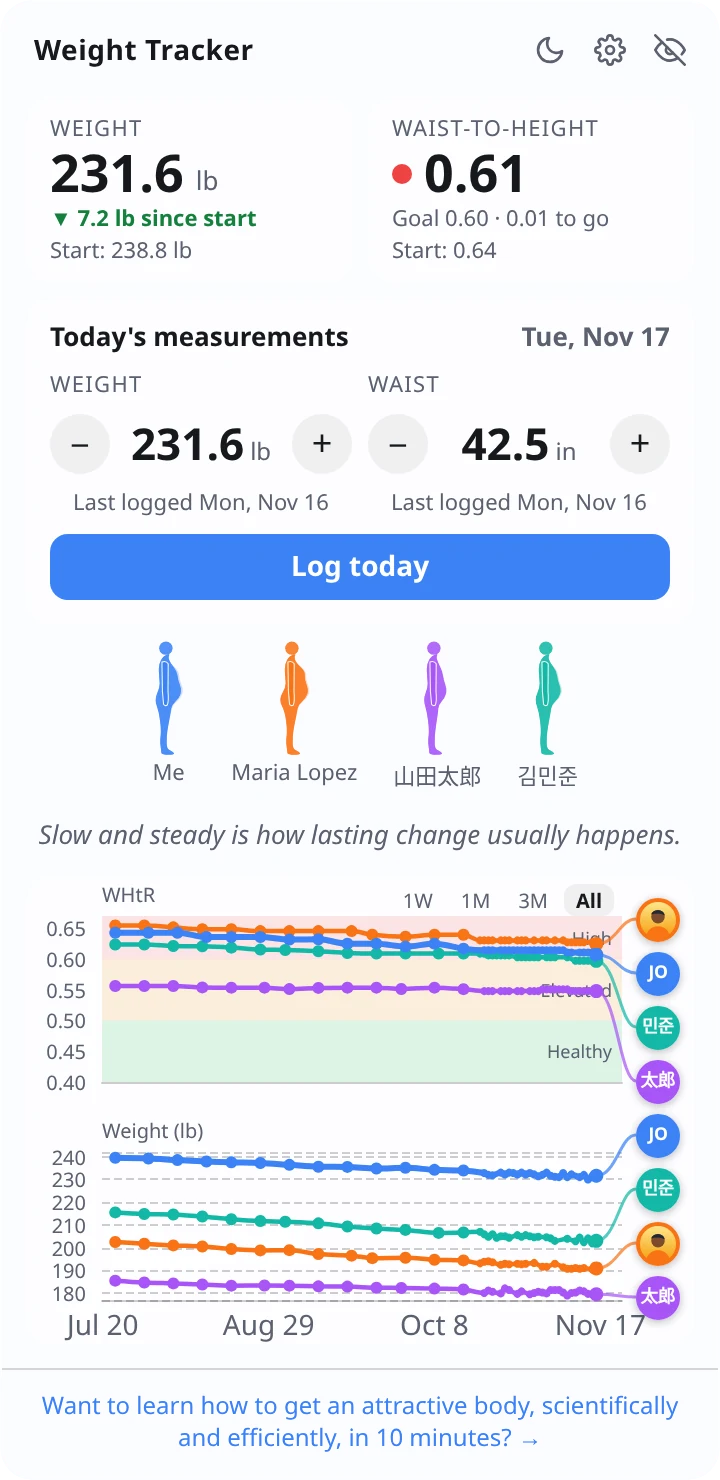
- Your progress (top): today’s weight and waist-to-height ratio, how far you’ve come, and your next goal.
- Today’s measurements: where you log.
- Body figures: you and your partners, with a pale outline of where each of you started.
- Daily tip: a new message every day.
- Charts: waist-to-height and weight, for everyone.
- Top right: light or dark mode, Settings, and Hide.
Logging every day
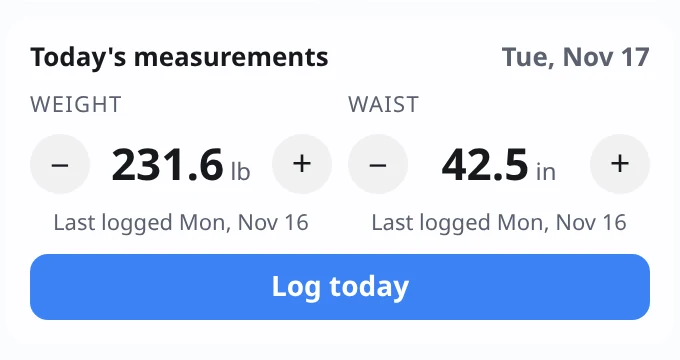
- Your last weight is filled in. Adjust it with + and −, or hover over the number and turn the mouse wheel.
- Press Log today. Changed your mind? Adjust again and press Update today; the newer entry replaces the earlier one.
- Your waist is there every day, but it’s only saved if you change it. After 7 days, the panel reminds you it’s time to measure.
- If a number changes much more than usual, it asks Is that right? so a slip of the finger doesn’t spoil your chart.
Reading your charts
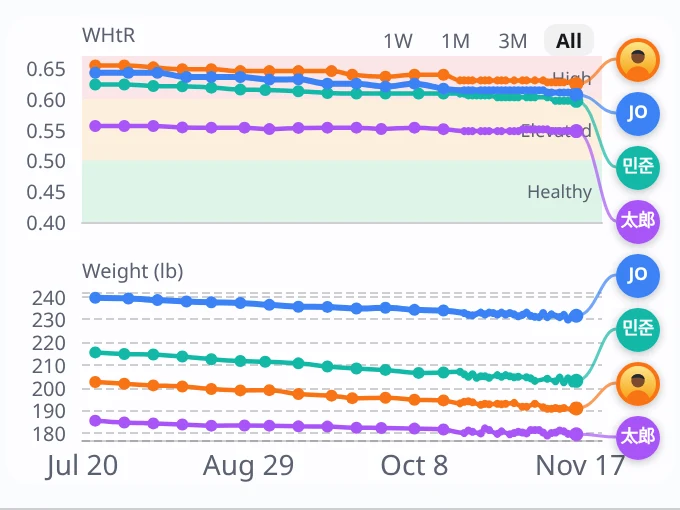
- Waist-to-height ratio is your waist divided by your height. The bands show High (above 0.60), Elevated (0.50 to 0.60) and Healthy (0.40 to 0.50).
- Your goals are 0.60 first, then 0.50. Below 0.50, the goal is to stay in the healthy range.
- The chart stops at 0.40. If someone goes below it, their line rests on the bottom edge with a note.
- The last 30 days show every day; older days are shown as weekly averages, so a long history stays readable.
- Choose 1W, 1M, 3M, 1Y or All to zoom. Hover over a point for details.
Partners
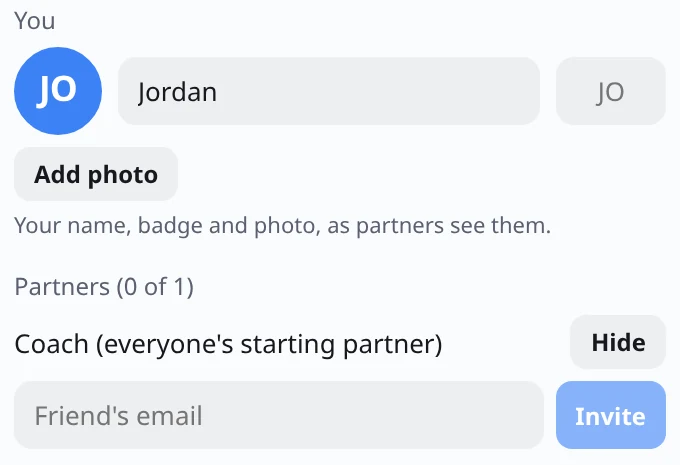
- Invite: Settings → Partners, type your friend’s email, press Invite. They get an email with a link.
- Accept: your friend opens the link, creates an account (or signs in) and accepts. You’ll see each other within the hour.
- Cancel an invitation that hasn’t been answered, to free the place. Unanswered invitations expire after 30 days.
- Remove a partner to stop sharing both ways. Your chart updates right away; theirs updates the next time their app starts.
- The starting partner is there so nobody starts alone. They don’t use a partner place, and you can hide them.
- Partner places: 1 on a free account, up to 3 for Supporters.
Settings
Open Settings with the gear icon at the top right.
- You: your name, badge and photo, as partners see them.
- Language: automatic, or pick one of 9.
- Text size: 90% to 150%. The panel grows to fit.
- Panel position: on the desktop (behind your apps) or always on top.
- Body figures: show or hide.
- Units: U.S. (lb, in) or metric (kg, cm).
- Adjust numbers with: ± buttons, the mouse wheel, or both.
- Appearance: follow your computer, light or dark.
- Account: see who you’re signed in as, or sign out.
Hiding the panel
- Press Ctrl+Alt+Space (on a Mac, Control+Option+Space) to hide it. Press it again to bring it back.
- Or use the eye icon at the top of the panel, or the Weight Tracker icon in your menu bar (Mac) or system tray (Windows).
- The panel always comes back when your computer restarts, so it can’t stay forgotten.
- To stop it starting with your computer, untick Start when computer starts in the tray icon’s menu.
Privacy and your data
- Only you and the partners you accept see your measurements. No ads, and your data is never sold.
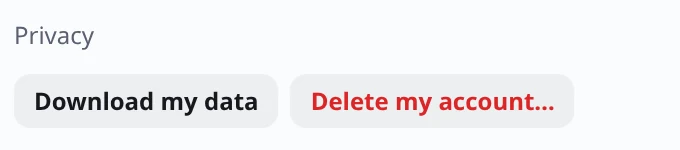
- Download my data (Settings → Privacy) saves everything we hold about you to your Downloads folder.
- Delete my account removes your account, measurements, photo and partnerships for good. It asks for your password first.
- Read the full privacy policy.
Updates
Weight Tracker checks for updates by itself. When one is ready, the panel shows Update and restart. Press it, and you’re on the newest version in a few seconds.
Weight Tracker offers general wellness information, not medical advice. If you have health concerns, talk to your doctor.